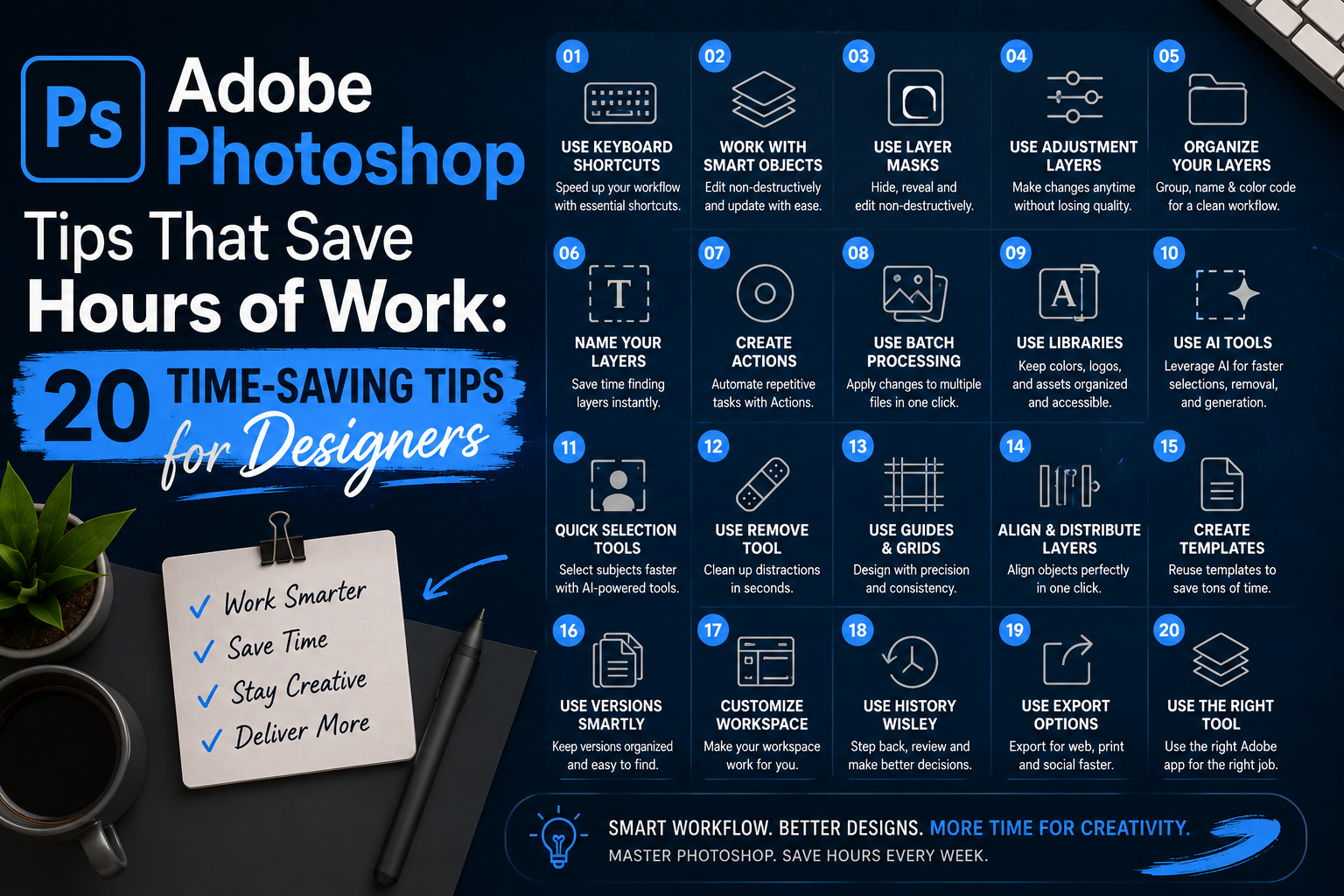
Adobe Photoshop is one of the most powerful tools available to graphic designers.
But knowing Photoshop and working efficiently in Photoshop are two different things.
You can spend hours manually doing something that could have been completed in a few minutes with the right shortcut, workflow, or feature.
For professional designers, those small time savings add up.
Saving five minutes on one task might not sound significant.
But saving five minutes across dozens of tasks every week can save hours of work every month.
And with Photoshop continuing to introduce AI-powered features, automation, and smarter workflows, designers have more opportunities than ever to work faster without sacrificing quality.
Here are some practical Adobe Photoshop tips that can make your workflow more efficient.
1. Learn the Keyboard Shortcuts You Use Every Day
You don't need to memorize every Photoshop shortcut.
Start with the ones you repeatedly use.
Some useful shortcuts include:
- Ctrl/Cmd + T — Free Transform
- Ctrl/Cmd + J — Duplicate layer
- Ctrl/Cmd + G — Group layers
- Ctrl/Cmd + S — Save
- Ctrl/Cmd + Z — Undo
- Ctrl/Cmd + Shift + Z — Step forward
- Ctrl/Cmd + 0 — Fit image to screen
- Ctrl/Cmd + 1 — 100% view
- B — Brush Tool
- V — Move Tool
- M — Marquee Tool
- C — Crop Tool
The goal isn't to become a shortcut encyclopedia.
It's to reduce how often your hand needs to move between the keyboard and mouse.
2. Use Smart Objects Whenever Possible
Smart Objects are one of the most useful Photoshop features for non-destructive editing.
Instead of directly editing the original layer, a Smart Object preserves the source content.
This is particularly useful for:
- Mockups
- Product designs
- Posters
- Packaging
- Social media templates
- Repeated graphics
For example, if you're creating a product mockup, placing the artwork inside a Smart Object allows you to update the design without rebuilding the entire composition.
One setup can save you countless repetitive edits.
3. Stop Editing Destructively
One of the biggest workflow improvements you can make is learning to edit non-destructively.
Instead of permanently changing your original image, use:
- Layer masks
- Adjustment layers
- Smart Objects
- Smart Filters
- Separate layers
This gives you more control later.
It also means you don't have to redo your work when a client suddenly says
“Can we make the background slightly darker?”
4. Use Layer Masks Instead of Erasing
The Eraser Tool can permanently remove pixels.
Layer Masks allow you to hide parts of a layer without destroying them.
This makes it easy to:
- Restore hidden areas
- Refine selections
- Create complex compositions
- Change your mind later
A simple rule:
If you're unsure whether you'll need something later, don't delete it. Mask it.
5. Use Adjustment Layers
Instead of permanently changing an image's brightness, contrast, color, or saturation, use Adjustment Layers.
Common examples include:
- Curves
- Levels
- Brightness/Contrast
- Hue/Saturation
- Color Balance
- Black & White
- Selective Color
This keeps your edits flexible.
You can always go back and change the adjustment without affecting the original image.
6. Organize Your Layers Properly
A messy Photoshop file can become a productivity problem.
Imagine opening a PSD with:
Layer 1
Copy of Layer 1
New Layer
Final
Final Final
Final 2
You know the problem.
Instead, organize layers into meaningful groups.
For example:
Background
Product
Typography
Graphics
Effects
Adjustment
References
A few seconds spent organizing your document can save significant time later.
7. Name Your Layers
This sounds boring.
It isn't.
When a PSD contains hundreds of layers, meaningful names become extremely valuable.
Instead of:
Layer 57
use:
Product Shadow
Instead of:
Layer 83
use:
Headline
It takes a few seconds when you're creating the layer.
It can save several minutes when you're trying to find it later.
8. Create Your Own Photoshop Actions
If you repeatedly perform the same sequence of steps, consider creating an Action.
Actions can automate repetitive processes such as:
- Image resizing
- Export preparation
- Basic photo processing
- Creating recurring effects
- Applying standard adjustments
- Preparing images for different platforms
Instead of performing ten steps manually every time, you can trigger them with one action.
This is especially useful for designers working with large numbers of assets.
9. Use Batch Processing for Repetitive Tasks
If you need to perform the same operation on dozens of images, don't do them individually.
Photoshop's automation and batch-processing capabilities can help process multiple files using the same workflow.
This is useful for:
- Product images
- Social media assets
- Portfolio images
- Website graphics
- Image resizing
- Export preparation
The computer should handle repetitive work whenever possible.
10. Use Libraries for Frequently Used Assets
If you repeatedly use the same:
- Logos
- Brand colors
- Icons
- Graphics
- Photos
- Templates
keep them organized and easily accessible.
Adobe Libraries can help designers maintain reusable brand assets across projects and Adobe applications.
This becomes especially useful when working on multiple campaigns for the same client.
11. Use Generative AI for Exploration
Photoshop's AI-powered tools can dramatically speed up certain tasks.
Depending on the feature and workflow, generative tools can help with things such as:
- Extending an image
- Removing distractions
- Creating variations
- Filling areas
- Exploring visual concepts
- Making compositing faster
But AI works best when you treat it as a creative assistant, not an automatic replacement for design judgment.
Instead of spending 30 minutes manually exploring an idea, you can use AI to generate possibilities and then refine the strongest direction yourself.
12. Don't Manually Remove Every Background
Photoshop has increasingly powerful selection and subject-isolation tools.
For many images, you can quickly create a selection using automatic subject detection and then refine it with masks.
This can save a considerable amount of time compared with manually tracing every edge from scratch.
However, always inspect difficult areas such as:
- Hair
- Fur
- Transparent objects
- Glass
- Fine details
- Complex edges
Automation gets you closer.
Your judgment gets you to the final result.
13. Use Remove Tool for Quick Cleanup
Removing unwanted objects used to require a complicated combination of selections, cloning, and healing.
Modern Photoshop tools can make many cleanup tasks significantly faster.
Use them for things like:
- Small distractions
- Unwanted objects
- Background imperfections
- Minor photo cleanup
For complex retouching, you may still need manual techniques.
But for quick cleanup, automated tools can save a lot of time.
14. Use Guides and Grids Instead of Guessing
If you're repeatedly moving objects until they “look aligned,” you're wasting time.
Use:
- Guides
- Smart Guides
- Grids
- Rulers
- Alignment tools
These help you create consistent layouts much faster.
Good design isn't only about having a good eye.
It's also about building systems that make accuracy easier.
15. Use the Align Tools
When working with multiple objects, don't manually position every element.
Select the relevant layers and use Photoshop's alignment options.
You can quickly:
- Align left
- Align right
- Center horizontally
- Center vertically
- Distribute spacing
This is especially useful when creating:
- Presentations
- Social media designs
- Product layouts
- UI graphics
- Brand collateral
16. Create Templates for Repeated Designs
If you create the same type of design repeatedly, don't start from zero every time.
Create a reusable PSD template.
For example:
Instagram Post Template
YouTube Thumbnail Template
Ad Template
Product Promotion Template
Presentation Template
Keep the structure, guides, brand assets, and editable areas ready.
Then each new design becomes a modification rather than a completely new project.
17. Use Versioning Instead of Duplicating Everything
When exploring multiple concepts, it's easy to end up with dozens of PSD files.
Instead, establish a simple versioning system.
For example:
Project_v01.psd
Project_v02.psd
Project_v03.psd
Project_Final.psd
Project_Final_Approved.psd
This makes it much easier to identify which file is current.
18. Customize Your Workspace
Photoshop can become overwhelming because it contains so many tools and panels.
You don't need every panel open.
Create a workspace based on your actual work.
For example, a graphic designer might prioritize:
- Layers
- Properties
- Character
- Paragraph
- Libraries
- History
A photographer may need a different setup.
The less time you spend searching for tools, the faster your workflow becomes.
19. Use History Strategically
Photoshop's History panel can be extremely useful when experimenting.
Instead of being afraid to try something, experiment knowing you can return to an earlier state.
For larger projects, however, don't rely only on History.
Save versions of important milestones.
That gives you more control over complex projects.
20. Don't Make Photoshop Do Everything
This might be the most important tip.
Photoshop is incredibly powerful.
But using Photoshop for everything can actually slow you down.
Use the right tool for the right task.
For example:
Photoshop → Image editing, compositing, photo manipulation
Illustrator → Vector graphics, logos, illustrations
InDesign → Long documents and editorial layouts
After Effects → Motion graphics
Premiere Pro → Video editing
Adobe Express → Quick content production
Professional workflows aren't about knowing one tool.
They're about knowing which tool solves the problem fastest and best.
How AI Is Changing Photoshop Workflows
AI is becoming one of the biggest productivity improvements for designers.
But the biggest advantage isn't simply generating images.
It's reducing repetitive work.
A designer can potentially spend less time on:
- Removing objects
- Extending backgrounds
- Creating variations
- Basic cleanup
- Image preparation
- Repetitive editing
And more time on:
- Creative direction
- Concept development
- Brand strategy
- Visual storytelling
- Art direction
- Problem solving
That's where AI becomes genuinely useful.
The goal isn't to use AI everywhere.
The goal is to use it where it saves time without compromising the quality or intention of the design.
The Real Photoshop Productivity Secret
The biggest Photoshop time-saving trick isn't a particular shortcut.
It's building a repeatable workflow.
Instead of asking
“How can I finish this design faster?”
ask
“How can I make sure I don't have to repeat this work next time?”
That might mean creating:
- A template
- An Action
- A Smart Object
- A Library
- A reusable asset
- A custom workspace
- A batch process
- An AI-assisted workflow
The first time may take longer.
But every future project becomes faster.
Final Thoughts
Photoshop productivity isn't about rushing through your work.
It's about eliminating unnecessary work.
Use shortcuts.
Automate repetitive tasks.
Create templates.
Organize your files.
Use non-destructive editing.
Take advantage of AI where it makes sense.
And most importantly, build systems around the work you do repeatedly.
Because professional design isn't just about creating great visuals.
It's also about creating them efficiently, consistently, and intelligently.
The best Photoshop workflow isn't the one where you work faster.
It's the one where you have less unnecessary work to do.
Frequently Asked Questions
What are the best Photoshop tips for graphic designers?
Start with keyboard shortcuts, Smart Objects, layer masks, Adjustment Layers, Actions, templates, batch processing, organized layers, and AI-assisted tools.
How can I make Photoshop faster?
Use shortcuts, reduce unnecessary panels, organize your files, create reusable templates, automate repetitive tasks, and use Actions or batch processing where appropriate.
How can AI save time in Photoshop?
AI-powered tools can speed up tasks such as object removal, image expansion, background work, selection, and creative exploration, allowing designers to spend more time on creative decisions.
Is Photoshop still important for graphic designers in 2026?
Yes. AI has changed how designers work, but Photoshop remains a powerful tool for image editing, compositing, retouching, advertising creatives, digital campaigns, and visual production.
Comments 0
Join the Conversation